


Packet Logs
The Packet Logs section of the Burq Connector App tracks and records every API request and response between the ERP system (e.g., Dynamics) and connected e-commerce platforms (e.g., eBay, Magento). This feature is crucial for troubleshooting and ensuring data integrity during the exchange of data packets between systems. It provides details such as the API method used, the source and destination, timestamps, and response status.
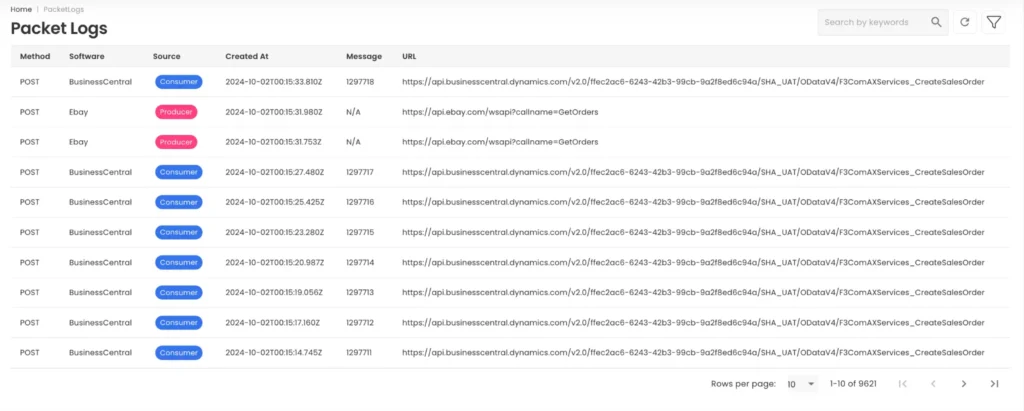

Key Features of the Packet Logs Page
Packet Log Table:
The logs are displayed in a table with the following key columns:
- Method: The type of HTTP method used for the transaction, typically POST, indicating that data is being sent to a service.
- Software: The platform or software involved in the transaction (e.g., BusinessCentral, eBay).
- Source: Identifies whether the packet originated from a Producer (e.g., eBay sending data) or a Consumer (e.g., Business Central receiving data).
- Created At: The timestamp when the packet log was recorded.
- Message: The transaction or message ID associated with the API call.
- URL: The full API endpoint being accessed for the transaction, allowing for further debugging or inspection.
Main Search Feature:
A search bar located at the top of the Packet Logs page allows users to search through all logs using keywords. This feature enables users to quickly locate specific logs without having to apply advanced filters.
Copy Feature:
Next to each Message or URL in the table, there is a copy icon that allows users to quickly copy the content (e.g., API URL or Message ID). This feature is helpful for pasting the data into other systems or documentation during troubleshooting or auditing.
Packet Log Detail View:
• Clicking on a specific packet log entry opens a Detailed View, where users can examine the complete transaction data:
• Method: Type of HTTP method used (e.g., POST).
• Level: Severity or type of log (e.g., Trace).
• Logger: Identifies the specific log source within the system.
• Request Body: Displays the content of the API request being sent, typically in JSON format. This might include customer data, order details, or inventory updates.
• Request Query Params: Displays any query parameters sent with the request (e.g., company identifiers or session IDs).
• Response Body: Contains the response data from the API, including error messages if the request was unsuccessful. For example, the error might show if a required field is missing or if the data cannot be found in the destination system.
• Processing Time: The time taken to process the request, which can help identify performance issues.
Advanced Filtering Options
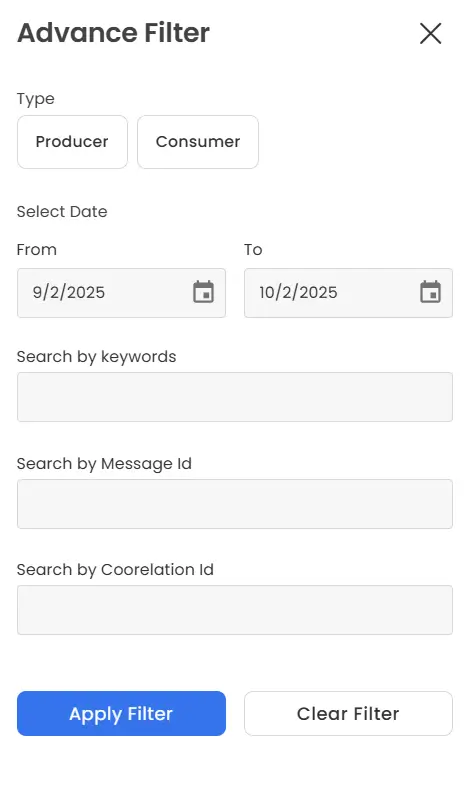
Type Filter:
• Users can filter packet logs based on the role in the transaction:
• Producer: Logs where the platform is sending data to another system (e.g., eBay sending order data).
• Consumer: Logs where the platform is receiving data from another system (e.g., Business Central receiving an order creation request).
Date Range Filter:
Users can specify a date range (From and To) to filter logs based on the creation date of the packets.
Search by Keywords:
Users can search for packet logs by entering specific keywords, which might match any text in the log messages or the request body.
Search by Message ID:
Users can filter the logs by entering a specific Message ID, which helps to quickly locate logs related to a specific transaction or data exchange.
Search by Correlation ID:
Users can enter a Correlation ID to search for logs related to a particular API transaction chain, allowing them to trace a sequence of related API calls.
Apply and Clear Filters:
• Apply Filter: Users can apply their selected filters to narrow down the logs.
• Clear Filter: Clicking the ‘Clear Filter’ button removes all filters and restores the full list of packet logs.