

Cross Reference
The purpose of the Cross Reference feature in Burq IPaaS is to manage mappings efficiently. Its primary goal is to uphold data integrity throughout synchronization processes, preventing duplication or loss of data. In Burq, the management of mappings has evolved into a more sophisticated, user-friendly, and categorized system. Cross-references are established for and utilized by the dataflows. Each data flow can incorporate multiple cross-references. This feature operates in a distinct yet intelligent manner to ensure seamless synchronization.
Adding Cross Reference
- Select Workspace→ Select Dataflow→ Cross References
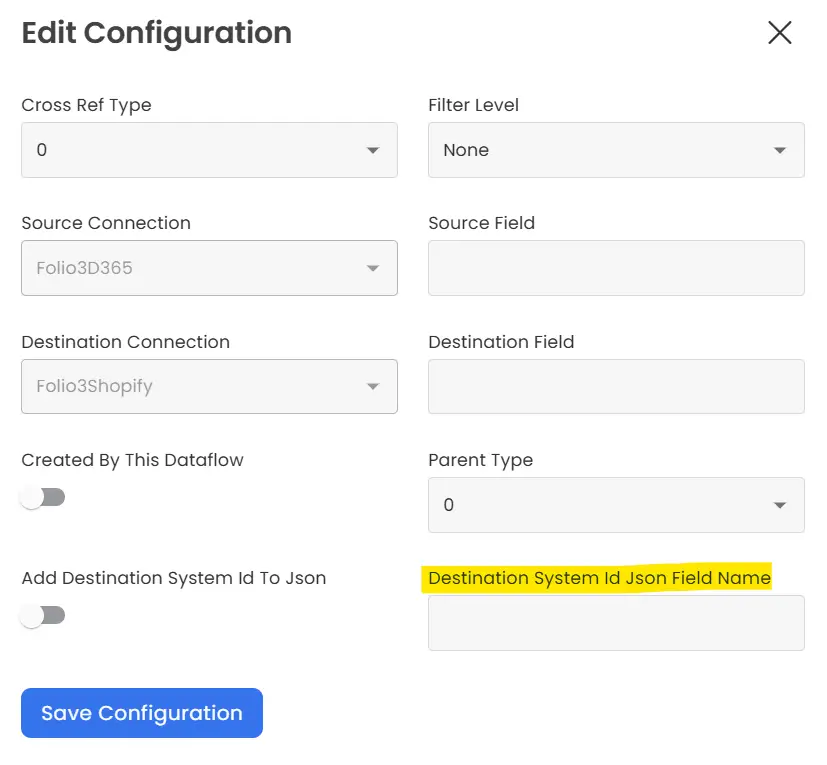
- As indicated in the screenshot below, to add a new cross-reference for any data type, simply click on the “Add Configuration” button.

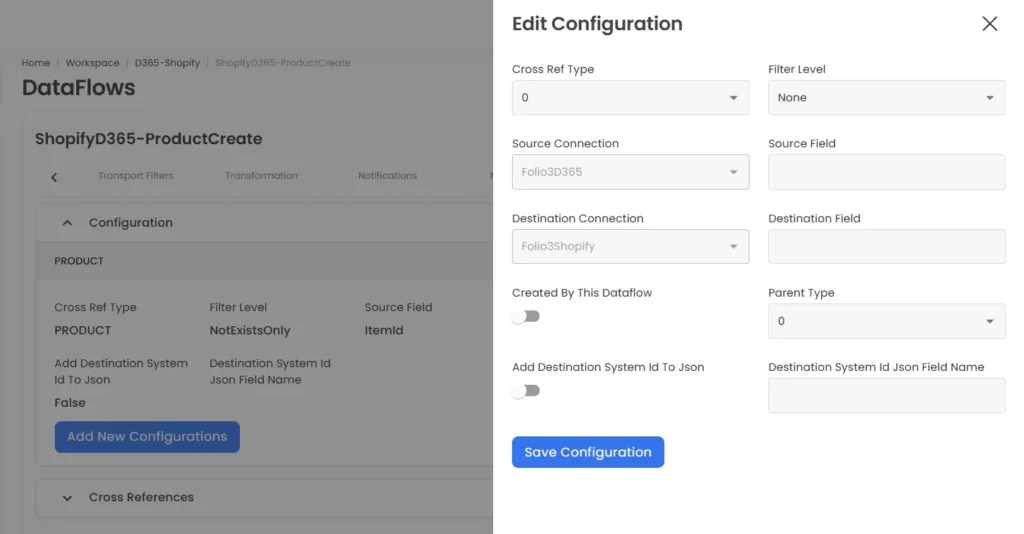
- When you click on the “Add Configuration” button, a side panel will open up, allowing you to fill out the required fields for creating a new cross-reference.
How Cross Reference Works
The cross-references established within the system are utilized and verified by the producer immediately after producing the data from the source and before dispatching it to the channel for consumption by the consumer. Once the data has been pushed to the destination, the cross-reference is added to the system. To grasp the deep functioning of cross-referencing within the system, it’s crucial to initially comprehend the attributes associated with it. These attributes essentially serve as the foundational pillars of cross-referencing.
Cross-Reference Attributes
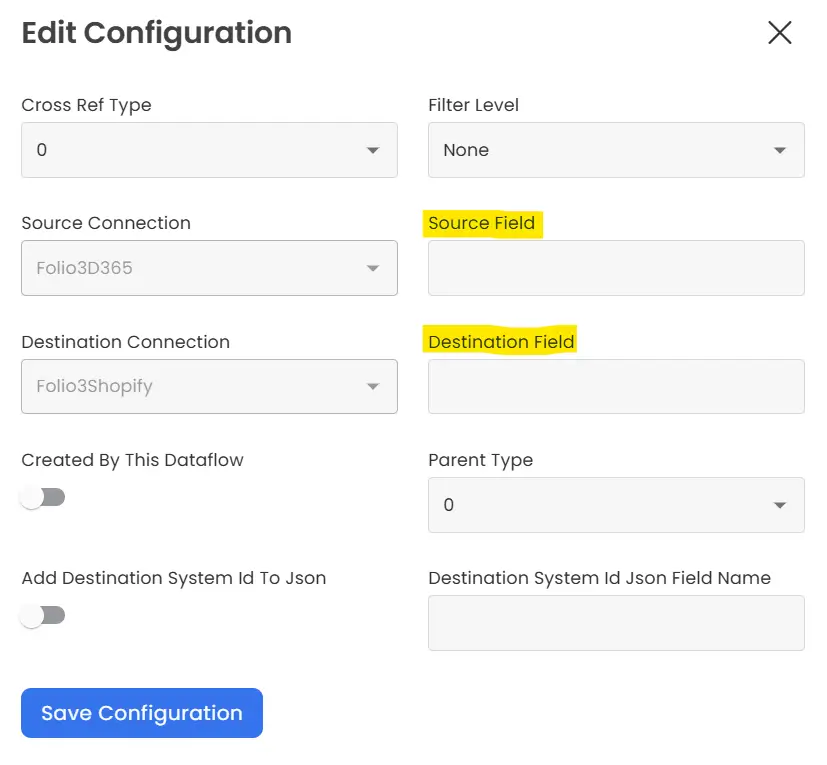
As illustrated in the screenshot below, the mechanism of Cross Reference operates based on the following attributes.
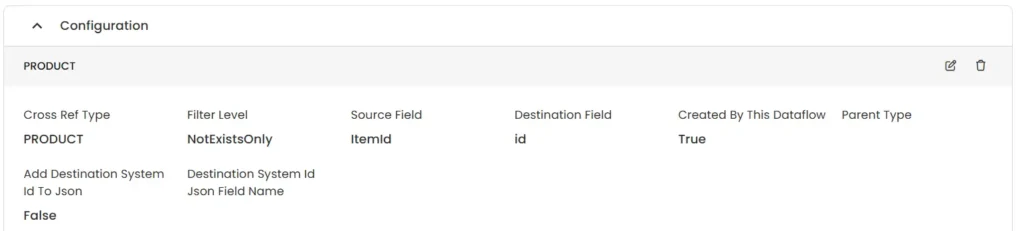
Cross Reference Type
This attribute specifies the data type to be utilized in establishing the cross-reference. It may pertain to PRODUCT, ORDER, SHIPMENT, or similar categories.

Filter Level
This attribute serves as the central component of the cross-reference system. When setting up a cross-reference, you have the option to select a filter level based on the nature of the data. These filter levels help the producer decide whether to send the data to the channel for the consumer to consume or discard the data. There are three types of filter levels available for creating a cross-reference.
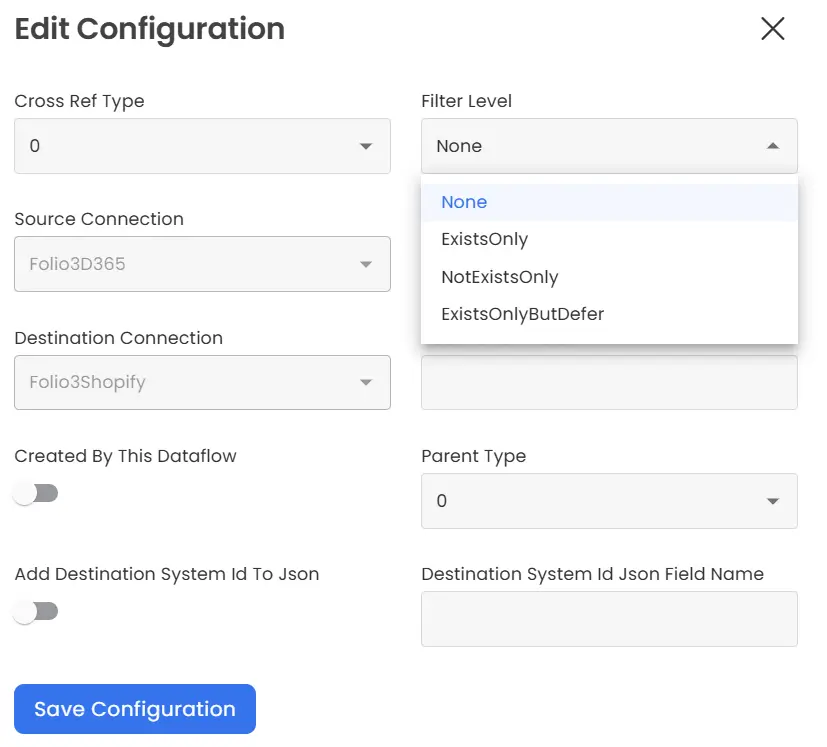
- NotExistOnly: When working with data creation, you maintain the setting as “NotExistOnly.” For instance, when dealing with data flows such as PRODUCT CREATE or ORDER CREATE responsible for generating data, setting it as “NotExistOnly” instructs the producer to send the produced data to the channel for consumer consumption only if the cross-reference for that specific data does not already exist.
- ExistOnly: is utilized in scenarios where data updation is concerned. For instance, within services like PRODUCT UPDATE or INVENTORY UPDATE, this setting ensures that the producer sends the produced data to the channel for consumer consumption only when a corresponding cross-reference for that particular data already exists.
- ExistOnlyButDefer: operates similarly to “ExistOnly,” with one key difference: when a cross-reference for the data doesn’t exist, the produced message isn’t discarded. Instead, it’s stored in the database, and the transaction continues to attempt processing by fetching the same message from the database at regular intervals until it succeeds.
- None: If the cross-reference is set to “None” for any job, the decision to create or update the data will be made within the code. If a cross-reference exists, it won’t check any filter level but will proceed to update the data. Conversely, if the cross-reference doesn’t exist, it will create the data instead.
Source and Destination Field
- The “Source Field” attribute serves as a designation for a specific field within the data. By setting the source field name, you’re essentially specifying which field from the source payload/JSON should be used as one of the two keys required for cross-referencing.
- The “Destination Field” attribute functions similarly to the “Source Field” in the cross-referencing process. It instructs the system to utilize the information provided in the specified field name as the second parameter for establishing the cross-reference. By designating the destination field, you’re essentially specifying which field in the data should be used as the counterpart to the source field when establishing cross-references
Created By This DataFlow:
This attribute contains two values, either true or false. When this field is set to “false,” it indicates that the system will only verify the existence of the entity being updated within the destination system. In other words, it checks for pre-existing cross-references that were created earlier by the DATA CREATE service for that specific entity. This setting ensures that the entity being updated already exists in the destination system before proceeding with the update.
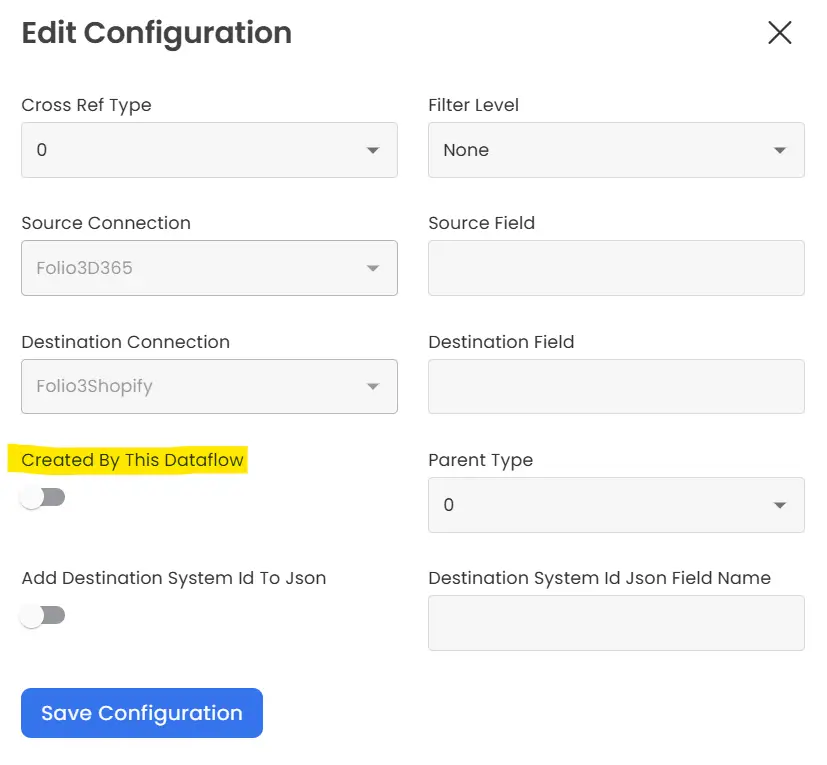
We always set “CreatedByThisDataFlow” as false with a filter level as “ExistsOnly” or “ExistsOnlyButDefer” for the dataflows responsible for updates and NOT the creation of data. This is because we want to instruct the system to check the existence of the cross-reference for the transaction we are about to update.
On the other hand, setting this field to “true” signifies the intention to create a new cross-reference within the system for the transaction being attempted. In this scenario, the system not only checks for the existence of the entity but also aims to establish a new cross-reference if one doesn’t already exist. This setting implies that the transaction is not just updating existing data but also potentially creating new relationships within the system. We always set “CreatedByThisDataFlow” as true with a filter level of “NotExistsOnly”.
Add Destination System ID to JSON:
When running our dataflows to update entities like products or orders, we follow a structured process involving two cross-references. Initially, we flag the attribute “CreatedByThisDataFlow” as false, indicating that we need to first verify the existence of a cross-reference for the entity within the system being updated. Additionally, we establish a second cross-reference to create a new relationship between the two systems. The function “AddDestinationSystemIDtoJSON” plays a crucial role in this process by facilitating the retrieval of the destination system ID from the established relationship. This ensures that during entity updates, the update request can accurately identify which transaction needs to be modified on the destination system
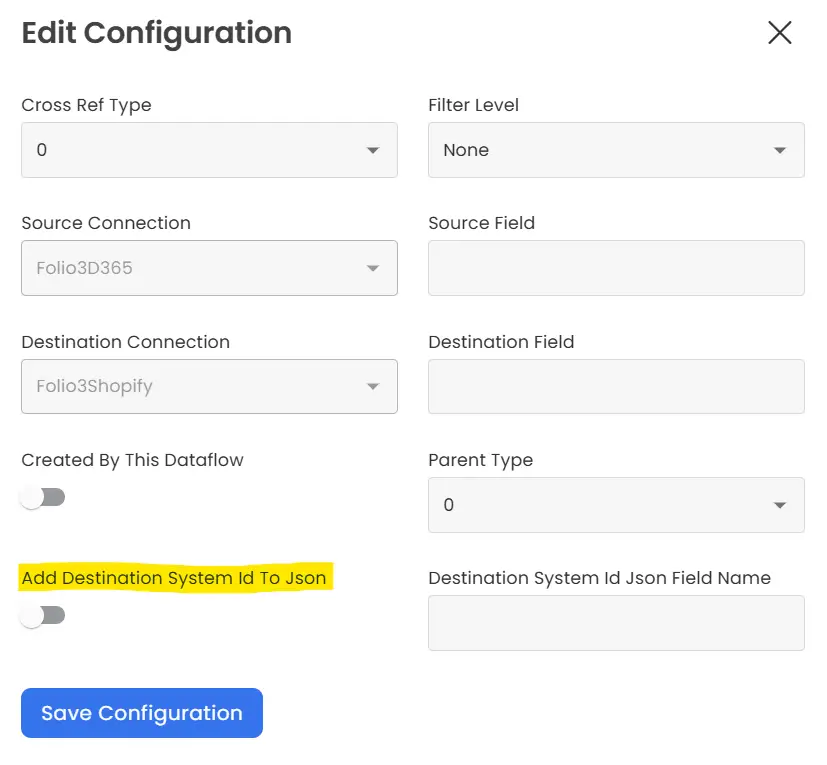
Destination System Id JSON Field Name:
This attribute is directly linked to the above-mentioned attribute and works side by side. Once again, this attribute contains two options, either true or false. It should be set to true when your intention is to add the destination system ID to JSON otherwise it will remain false.