

REST API
In Burq, go to Apps to view the list of connectors you have licensed. Burq provides an HTTP(S) connector that allows you to integrate with REST API. This section explains how to set up a REST API connection and use it inside a workflow.

Create a New HTTP(S) Connection
- Navigate to Apps → HTTP(S) from the Burq dashboard.
- Click Add instance and provide a name.
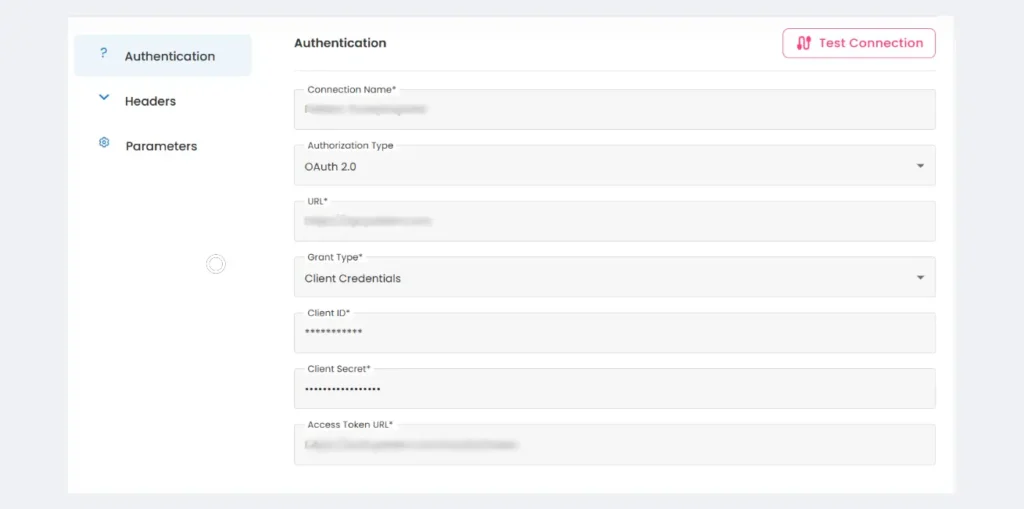
- Configure the following fields (click the Edit option next to your instance):
- Connection Name → A user-friendly name for the connection.
- Authorization Type → Choose the type of authentication required by the API (e.g., OAuth 2.0, API Key, or None).
- URL → Base URL of the API
- Grant Type → Select Client Credentials.
- Client ID → Provided by the API provider.
- Client Secret → Provided by the API provider.
- Access Token URL → The endpoint where Burq requests an access token.
Use the Connection in a Dataflow
Once the connection is created, you can use it inside a workflow orchestration.
- Go to Workspace → Dataflow → Orchestration.
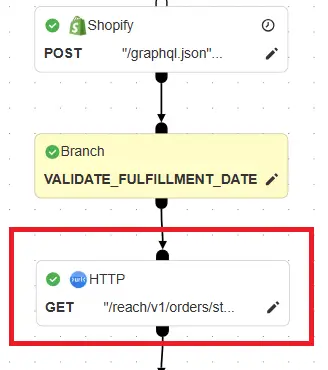
- Drag an HTTP(S) step into the workflow.
- Select the connection you created earlier.
- Configure the request: